Whatnot

Printing a Whatnot shipping label

When a Whatnot stream ends, every paid order lands in Seller Hub with a ready-to-buy label attached. The label is a 4x6 PDF built for thermal printing; the same file also prints on letter paper for anyone without a thermal. This page walks the flow, then answers the two things that trip live sellers up at 1 a.m.: scaling on a paper printer, and printing forty orders in one pass.

4x6 nativeBulk print built inPDF or thermal
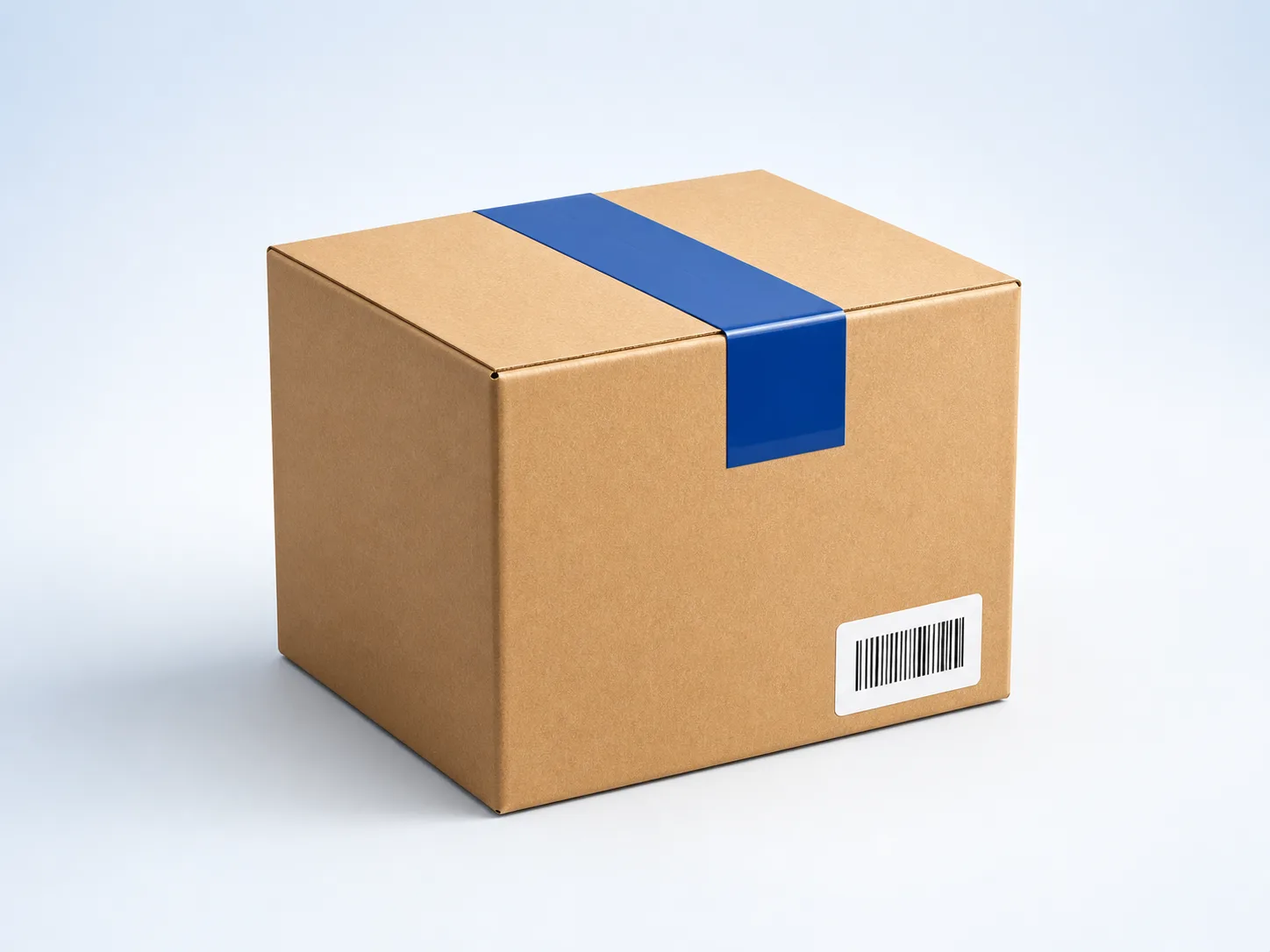
A 4x6 thermal shipping label ready to affix to a box
Where the label lives

Seller Hub > Orders > Ready to Ship. One click prints one; a tick and Bulk Print prints all.

The flow, step by step

  1. Open Seller Hub. On desktop at whatnot.com or on mobile in the Whatnot app, tap the seller menu and open Orders. A closed stream drops every paid buyer into that list within a couple of minutes.
  2. Filter to Ready to Ship. The default view mixes fulfilled, in-transit and pending. Filtering to Ready to Ship removes the noise and shows exactly the orders that still need a label off the printer.
  3. Confirm the parcel dimensions. Whatnot generates the label from the shipping profile set on your account. If a single item overshoots the profile's box size, edit the parcel weight and size on that order before you print — a label paid for a 1-lb box does not cover a 3-lb one, and the correction fee comes off your next payout.
  4. Print one, or batch. Tap Print Label to open the PDF for a single order. To knock down a night in one pass, tick each order and use Bulk Print — Whatnot returns a single multi-page PDF, one 4x6 per page, that a thermal feeds continuously.
  5. Peel, stick, scan. Peel the 4x6 off the liner, stick it flat on the largest face of the parcel, and tape a strip of clear packing tape along the seams around it. If the barcode falls on a taped area, the scanner reads it fine as long as the tape is not creased.
  6. Mark shipped and drop off. Once the parcel has a label, drop it at any USPS location or arrange a carrier pickup at the address on the label. Whatnot polls the carrier tracking and moves the order to In Transit automatically once the first scan lands.

Three printer setups sellers actually use

Direct-thermal 4x6

A Rollo, Zebra ZP450/GK420, DYMO 550 XL or Munbyn ITPP941 prints the Whatnot PDF at its native size and feeds label after label without ink. This is the setup for anyone running a stream a week or more. Send the PDF to the printer at 100% scale; do not fit to page.

Letter paper on a home printer

Open the PDF, print at 100% scale on 8.5 x 11 paper, cut the 4x6 out with scissors and tape it to the box on all four sides. Slower than thermal but the label reads exactly the same at the sortation belt.

Adhesive half-sheet labels

Avery 5126 or 5127 half-sheet stickers hold the 4x6 print without tape. Print centered on the top half, peel and stick. Cheaper per label than a thermal roll and better than plain paper on outdoor drop-offs.

For a longer look at printer choices for live-selling volume, see the guide to the best shipping label printer for Whatnot. It focuses on hardware; this page focuses on the print flow itself.

Two settings that fix nine problems out of ten

The Whatnot PDF is built for a 4-inch by 6-inch page. When it comes out of a home printer as a tiny stamp in the corner of a letter sheet, the PDF viewer is applying its default Fit to Page. Turn it off. In Adobe Acrobat or a Chromium browser print dialog, set Page Sizing to Actual Size. On macOS Preview, set Scale to 100% and Media Size to 4x6 (or Letter if you are cutting out of a full sheet). The label then prints at the exact size the barcode was drawn at, and a courier scanner reads it in one pass.

The second fix is thermal-printer paper size. A brand-new Rollo or Zebra defaults to a 4x6 profile on its driver, but a driver upgrade sometimes resets it to 4x8 or continuous. Open the printer preferences, set stock to 4x6, save. A wrong media size compresses the barcode height and prints a slightly stretched label — legible to human eyes, illegible to a laser scanner in a fast-moving trailer.

If the item does not fit Whatnot's rate

Whatnot's shipping profile covers small parcels up to a few pounds cleanly. A one-off large or heavy item — a boxed monitor, a bag of coins on the wrong side of two pounds, a cased LP with a stiffener — sometimes prices better on an outside label. Price the packed parcel on the calculator, compare against the Whatnot rate on the order screen, and if the outside label wins, cancel the Whatnot label from the order and upload the tracking number Whatnot's edit-tracking form accepts.

Common questions

Where does my Whatnot shipping label appear after a sale?

In Seller Hub under Orders. Each paid order gets a Print Label action; a completed stream drops all its orders into that list at once. Labels are also emailed to the seller as a PDF attachment for each order.

Does Whatnot support 4x6 thermal labels?

Yes. The label PDF is sized to 4x6, so a Rollo, Zebra, DYMO or Munbyn thermal prints it edge to edge without any resizing. Send the PDF to the printer at its native page size; do not fit to page.

How do I print a Whatnot label on 8.5 x 11 paper?

Open the PDF in a browser or PDF viewer, set paper size to Letter, scale to Fit, and print. Cut the 4x6 out of the center of the sheet and tape it to the parcel. Clear packing tape over the whole label keeps it legible.

Can I print all my labels at once after a stream?

Yes. In Seller Hub, filter Orders to Ready to Ship, tick each order and use Bulk Print. Whatnot returns a single multi-page PDF the printer feeds one label at a time — the fastest way to work through a night of auctions.

The label prints too small. Why?

The PDF viewer is scaling to fit the paper. Turn Fit to Page off and set paper size to 4 by 6 in the print dialog; on a Mac, set Scale to 100% and Media Size to 4x6. On a thermal printer set to 4x6 stock, the label prints at its true size.